

Google launched Universal Cart in the U.S. on October 15, 2026: one cart for products from many stores, in Google Search (including AI Mode) and the Gemini app. A shopper can pay with Google Pay inside Google or move the items to your store’s cart. Both checkout options run on the Universal Commerce Protocol (UCP), and Google onboards merchants to UCP through a new hub in Merchant Center, after an interest form and a technical review.
As of October 16, 2026. Each section links to the primary source.
| Your situation | What applies to you | First step |
|---|---|---|
| U.S. store with a development team or agency | Cart transfer, native checkout or both, through the Merchant Center UCP hub | Implement UCP, then fill out Google’s interest form |
| Store on a platform that manages checkout for you | Your platform’s UCP plans | Ask the platform, as Google’s help article advises |
| Store selling outside the U.S. | Hub not available yet; Australia and Canada are next | Clean up the Merchant Center data now |
| Store not in Merchant Center free listings | No route in | Get products approved for free listings first |
If you want the fastest way in, start with cart transfer. It needs one API, and the buyer still pays in your own checkout.
What Universal Cart does
Google’s launch post lists what the cart does: it keeps items from multiple merchants together, sends notifications about price drops and restocks, and shows relevant promo codes. To buy, the shopper can “securely check out with Google Pay in just a few taps” or “transfer your items directly to the merchant’s cart to finish buying on their site”. Google names Nike, Sephora, Target, Ulta Beauty, Walmart, Wayfair and “many Shopify merchants” as stores to try it with. Source: Google, Universal Cart launch, October 15, 2026
The post says checkout is “powered by the Universal Commerce Protocol”. It does not say how merchants are selected or whether fees apply. Those two buy options map directly to the two UCP capabilities a merchant can choose in Merchant Center: transfer to merchant cart and native checkout on Google. Google’s help article describes the result as “a checkout button on eligible product listings in AI Mode in Google Search and on Gemini”. Source: Google Merchant Center Help, UCP integration hub
Shopify stores reach these surfaces through Shopify’s own settings for AI channels. Source: Shopify Help Center, agentic storefronts We walk through those settings channel by channel in Shopify Agentic Storefronts and Shop MCP. The rest of this article is for stores on other platforms or with their own stack.
Before the hub: what Merchant Center must already have
Google’s UCP guide starts with the account. You need “a Merchant Center account in good standing and approved products for free listings”. On top of that, two settings are mandatory for checkout on Google:
- Return policy with return cost, return window and a link to the full policy. Google calls it a Merchant of Record requirement and shows it on the checkout screen. In an advanced account it has to be set in every sub-account.
- Customer support info: at least one of a website URL, an e-mail address or a phone number. Google uses it for the “Contact Merchant” link on the order confirmation page.
Source: Google UCP guide, prepare your Merchant Center account
The same page lists products that cannot use checkout on Google. Among them: subscriptions and installments, personalized goods, refurbished, used and final sale items, pre-orders, products with freight or premium delivery, age-restricted items, services, rentals and virtual items. These must have checkout eligibility empty or set to false. If a large part of your catalog falls here, checkout on Google covers less of your sales than it seems.
The product data Google needs
Eligibility is set per product, in the feed. Google recommends adding the attributes through a supplemental data source, so a formatting mistake does not break your main product feed. Three attributes matter:
native_commerce(checkout_eligibility): true opts the product into checkout on Google. Missing or false means no checkout.consumer_notice: mandatory for products with regulatory warnings, such as California Proposition 65. It has anotice_type(legal_disclaimer,safety_warningorprop_65) and anotice_messageof up to 1,000 characters.merchant_item_id: needed only when the product ID in your feed differs from the ID your checkout API expects. When set, it takes precedence overidin agentic requests.
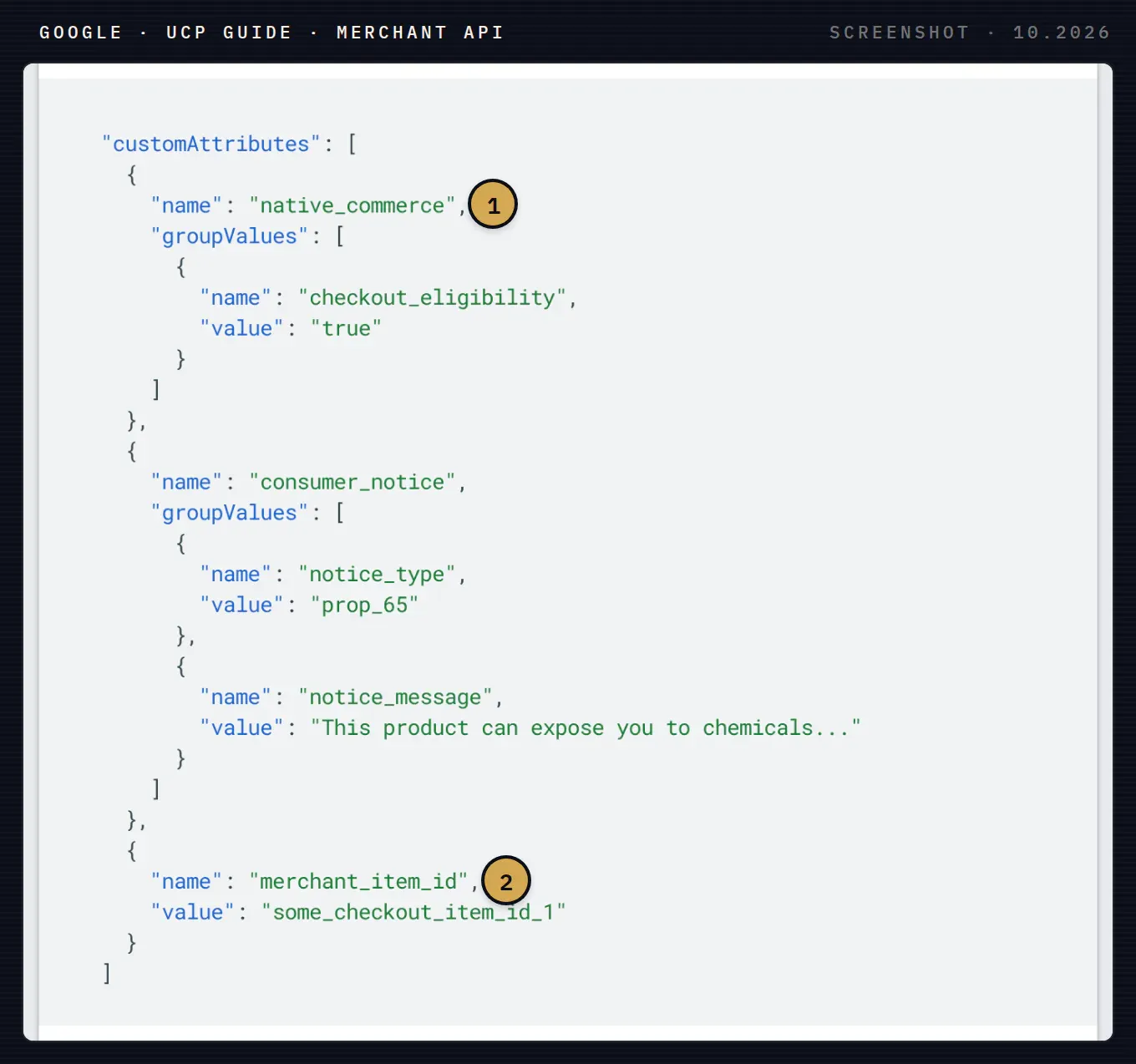
The same attributes sent through the Merchant API. 1 native_commerce with checkout_eligibility opts the product in. 2 merchant_item_id maps the feed product to the ID your checkout system knows.
Source: Google UCP guide, product data
The ID mapping is where we expect most work in practice. Many feeds are built by a plugin or a feed tool with its own ID scheme, while the store’s cart and checkout use SKU or variant IDs. Check this before writing any endpoint: if Google sends an ID your system cannot resolve, the cart stays empty.
Pick a path: cart transfer or native checkout
The UCP specification separates the two building blocks clearly. A cart is for “pre-purchase exploration” and has no payment. A checkout is for “purchase finalization”, needs payment handlers and has a status lifecycle that ends in a completed order.
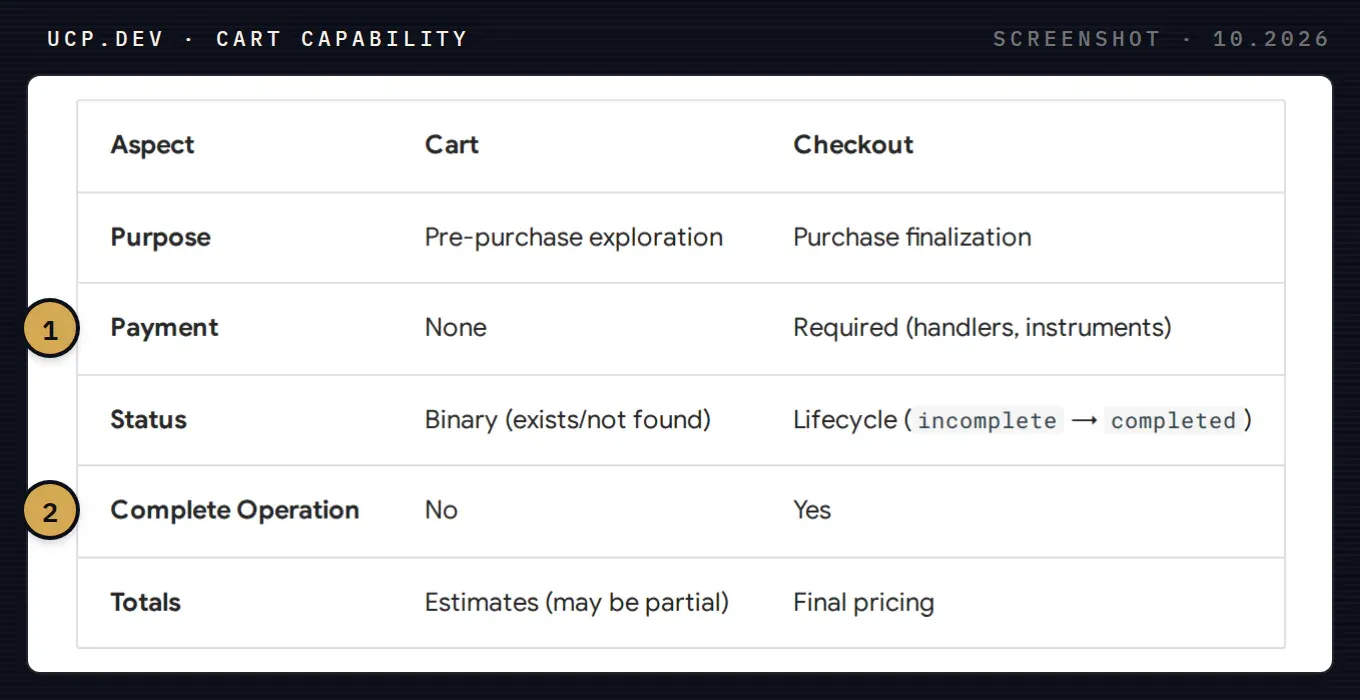
Cart compared with checkout in the UCP specification, version 2026-04-08. 1 A cart carries no payment; checkout requires payment handlers and instruments. 2 Only checkout has a complete operation, so only checkout produces an order.
Source: UCP specification, cart capability
In Merchant Center this becomes a choice of capabilities:
| Capability | What the buyer gets | What you build | Validation in Merchant Center |
|---|---|---|---|
| Transfer to merchant cart | Items go to your store’s cart; payment on your site | Cart API (create cart; get, update and cancel are optional in the sandbox) | Product ID mapping and cart tests |
| Native checkout on Google | Purchase on Google with Google Pay | Three REST endpoints for creating, updating and completing a checkout | Full account setup, endpoint tests, order status webhooks, UCP Program Addendum |
| Identity linking | Loyalty benefits and signed-in checkout | OAuth 2.0 | Marked “coming soon” |
Google calls cart transfer a fast-track path that “doesn’t require full product feed setup, product warnings, or customer support information”. You can choose both capabilities; then both checklists apply. Source: Google UCP guide, start UCP integration in Merchant Center
Our recommendation for most stores: launch cart transfer first. Your checkout, payment provider, fraud checks and order flow stay as they are, and you learn from the hub’s analytics whether Google sends buyers at all. Native checkout makes sense once that traffic is there, because it moves payment and order creation to an integration you have to monitor.
Publish your UCP profile
Google discovers your capabilities from a JSON file at /.well-known/ucp on your domain. It “must be publicly accessible and not require any authentication”. The profile declares the capabilities and versions you support, where Google should send API requests, how payment is handled and the public keys used to verify your messages. Source: Google UCP guide, prepare your UCP profile
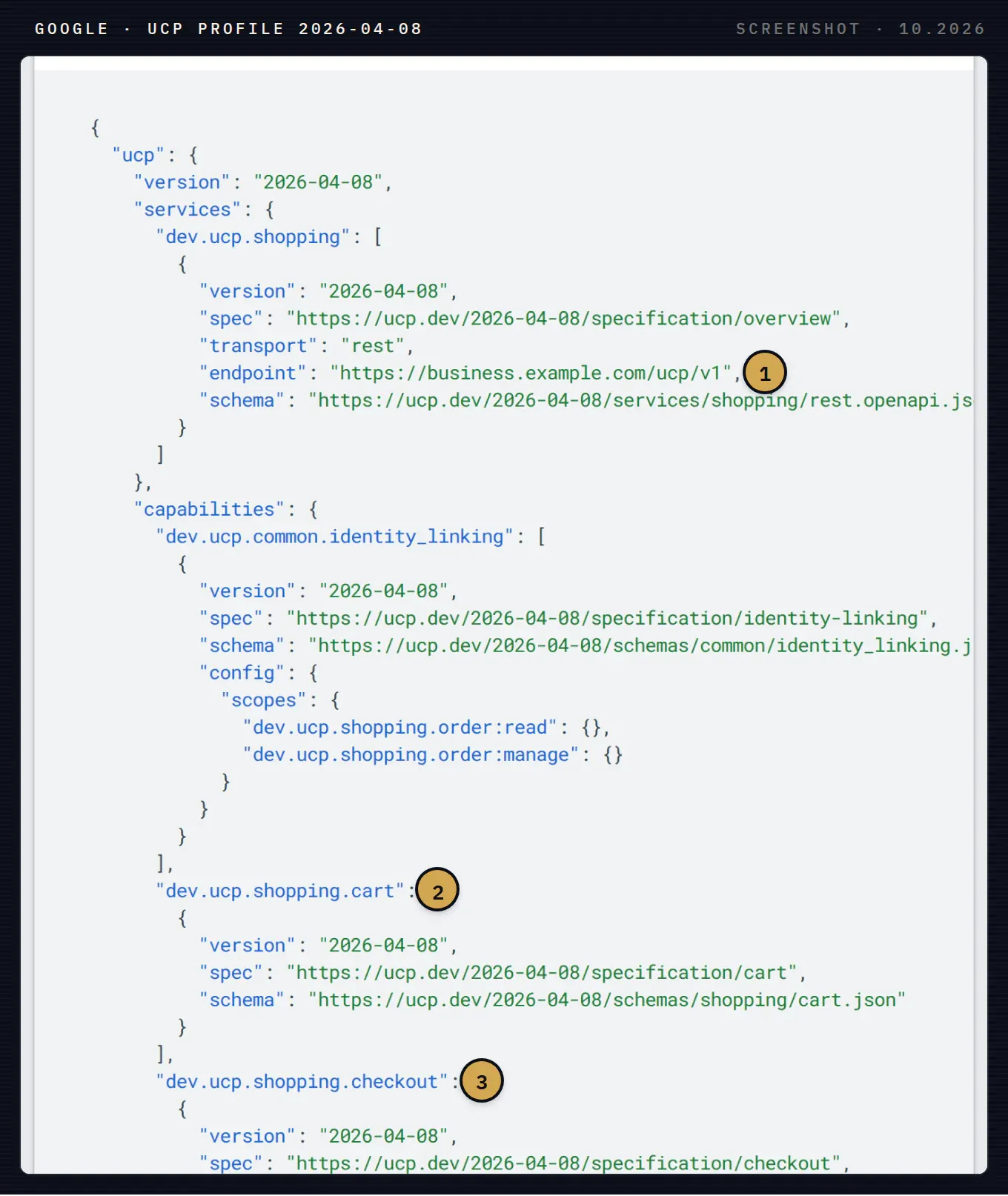
Google’s example profile for UCP version 2026-04-08. 1 The endpoint where Google sends UCP requests; in your profile this is your API, not business.example.com. 2 The cart capability, needed for transfer to merchant cart. 3 The checkout capability, needed for native checkout on Google.
Source: Google UCP guide, publish your UCP profile (2026-04-08)
One detail breaks validations: the capabilities in the profile must exactly match the ones you select in Merchant Center. If you declare checkout in the file but select only cart transfer, or the other way round, step 2 of validation will not pass. Source: Google UCP guide, start UCP integration
Where the hub lives in Merchant Center
Google’s help article sets the order: implement UCP following the developer guide, then fill out the interest form. Only after Google selects you does the onboarding appear in your account. Source: Google Merchant Center Help, UCP integration hub
Once it is there, Google’s guide describes it like this:
- Settings › UCP integration opens the hub. It has an Overview tab for setup, sandbox and production validation, and an Analytics tab with your UCP checkout funnel.
- API keys. Google calls your endpoints with keys you provide, separate for staging and production. You exchange them with Google by e-mail; the address is in the hub.
- Sandbox. The Test card lets you enter your profile URL and API key and simulate cart actions (create, get, update, cancel) or checkout actions (create, update, complete).
- Production validation. You select capabilities, add the profile URL, and complete the checklist for your path. Google Support then reviews the integration and tells you whether the account is live or what to fix.
To leave the program, you remove the UCP add-on card under Add-ons. That switches off showing and selling your products in these agentic experiences until you add it again. Source: Google UCP guide, start UCP integration
What to do this week
- Check eligibility of your catalog. Count how many products fall under Google’s restricted categories. That tells you how much of the store checkout on Google can cover.
- Fix Merchant Center basics. Return policy with cost, window and link; customer support contact; products approved for free listings.
- Compare IDs. Take ten products and check whether the feed
idmatches what your cart API expects. If not, planmerchant_item_id. - Decide on the path. Cart transfer first, unless you already run a headless checkout with clean APIs.
- Fill out the interest form once the implementation exists. Google’s help article makes the technical implementation a condition for onboarding.
If you sell through ChatGPT as well, much of the catalog work overlaps; we compared the routes for WooCommerce stores in WooCommerce and ChatGPT shopping. The fields and upload rules OpenAI sets are in our ChatGPT product feed spec guide.
How Syntropic helps
Our agentic commerce work covers exactly this: Merchant Center checks, the choice between cart transfer and native checkout, the UCP endpoints and the /.well-known/ucp profile, and the sandbox tests before Google’s review. When an assistant has to search your catalog well once the data is in, see our article on hybrid retrieval for product search.
Book a call and bring your platform and your feed: we will tell you which path fits and what to fix first.